
To deliver mail to users' existing Google Workspace mailboxes and, at the same time, route a copy to Alumni Forwarding for only a specific group of users, set up a split (dual) delivery routing rule scoped by group membership. Members of the group are delivered to their mailbox and copied to Alumni Forwarding; everyone else is unaffected.
How this differs from "Route Unknown G Suite Users"
That article routes to Alumni Forwarding only when the mailbox does not exist. This article keeps normal mailbox delivery and adds a copy to Alumni Forwarding, limited to the members of a group you choose.
Important — SPF and Spam Filtering settings: Because this configuration routes mail through Google Workspace before it reaches Alumni Forwarding, you must adjust your Alumni Forwarding spam filtering settings. See SPF, DKIM, and Spam Filtering Settings for Alumni Forwarding — Direct vs. Indirect Mail Routing before going live.
Below is a diagram showing the workflow.
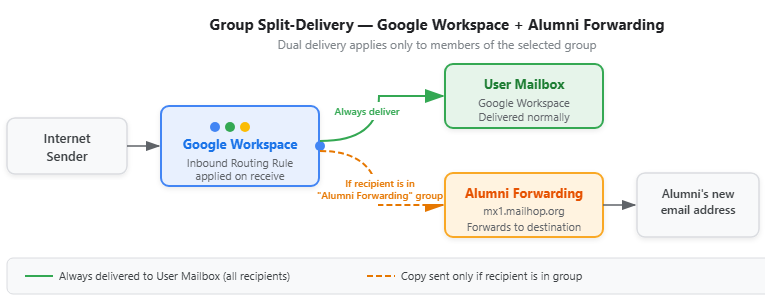
Part 1 — Add the Alumni Forwarding mail route (host)
If you have already added the mx1.mailhop.org host for another route, reuse it and skip to Part 2.
1. Navigate to https://admin.google.com/ and login.
2. Navigate to https://admin.google.com/u/1/ac/apps/gmail/hosts
3. Click "ADD ROUTE".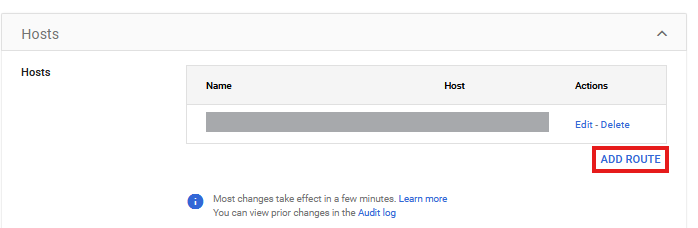
4. Click this field.
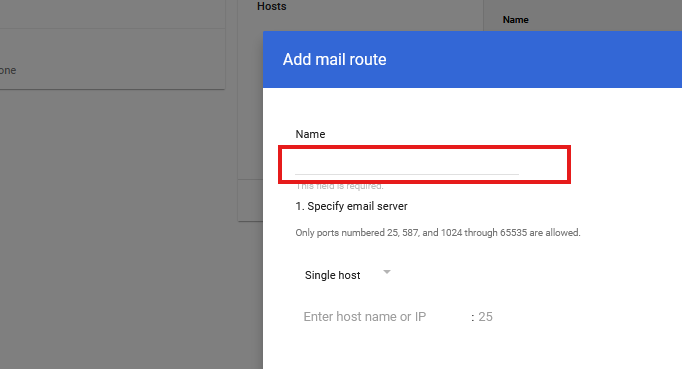
5. Type "mx1.mailhop.org - Alumni Forwarding".
6. Click the first field in the section 1. Specify email server.
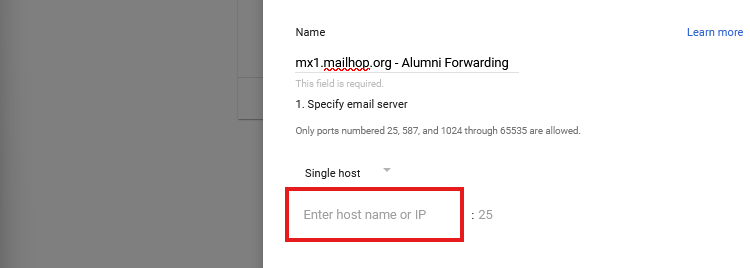
7. Type "mx1.mailhop.org".
8. Click the second field in the section 1. Specify email server.
9. Type "25".
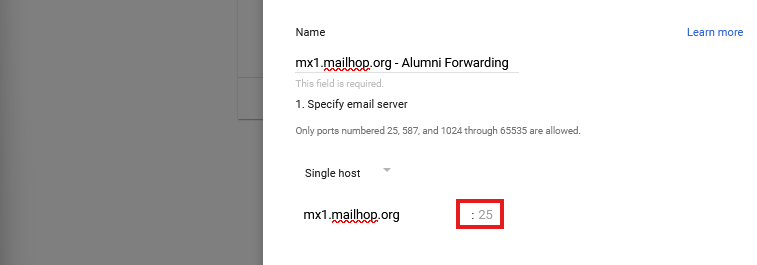
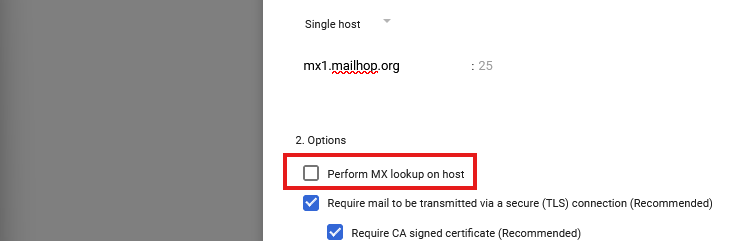
10. Click 'Perform MX lookup on host' in the 2. Options section (Single host).
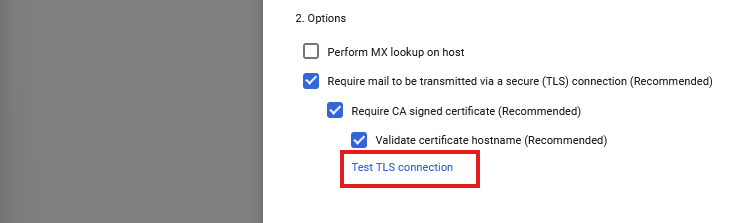
11. Click "Test TLS connection" in the 2. Options section.
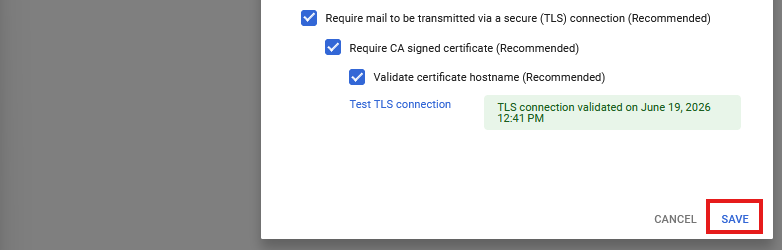
12. Click "SAVE".
Part 2 — Create the split delivery rule for the group
13. Navigate to https://admin.google.com/u/1/ac/apps/gmail/routing
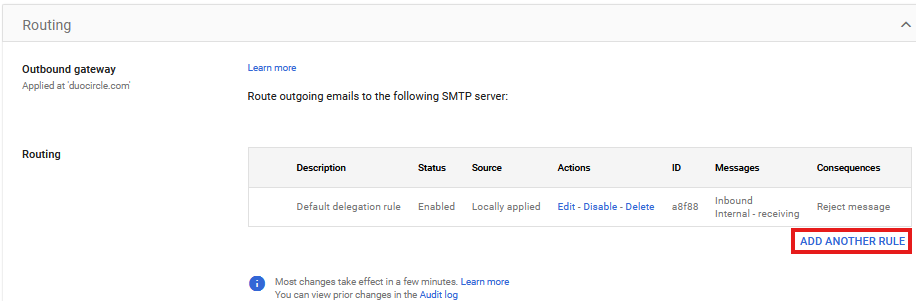
14. Click "ADD ANOTHER RULE".
15. Click this field.
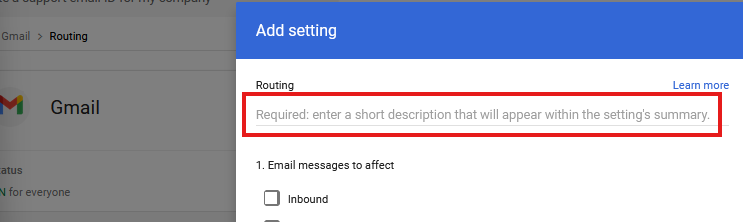
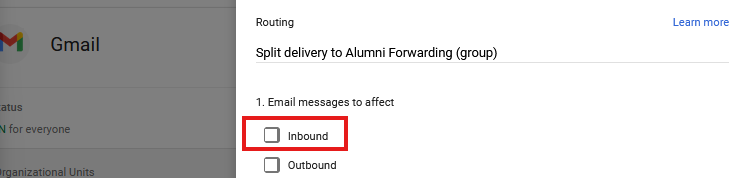
16. Type "Split delivery to Alumni Forwarding (group)".
17. Click inbound.
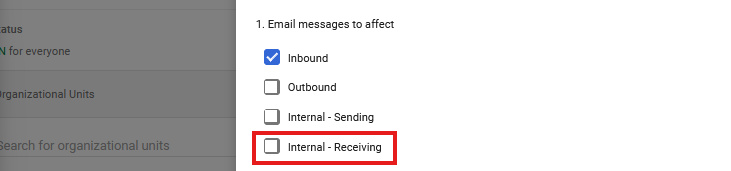
18. Click internal - receiving.
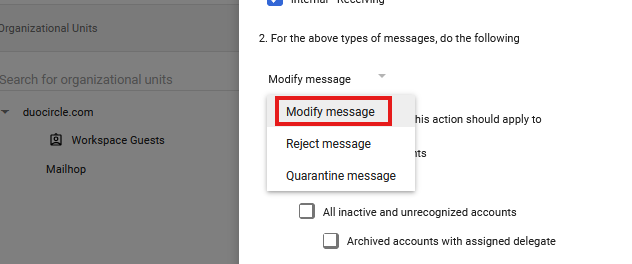
19. Under "For the above types of messages, do the following," select "Modify message".
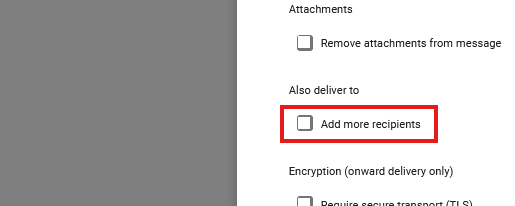
20. Scroll to "Also deliver to" and check "Add more recipients".
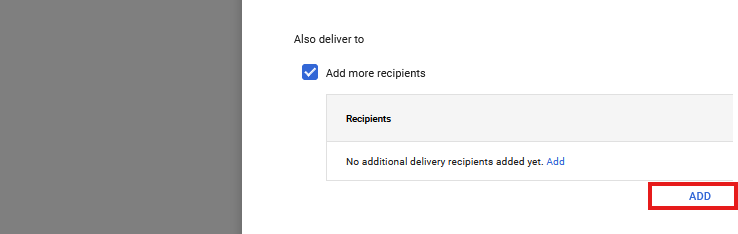
21. Click "ADD".
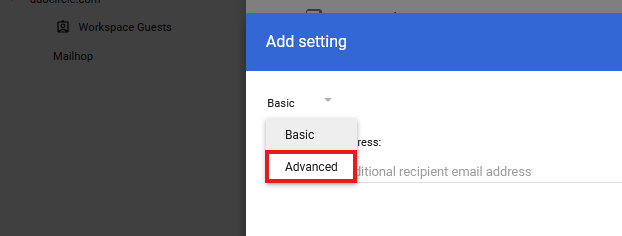
22. Click the down arrow on the recipient and select "Advanced".
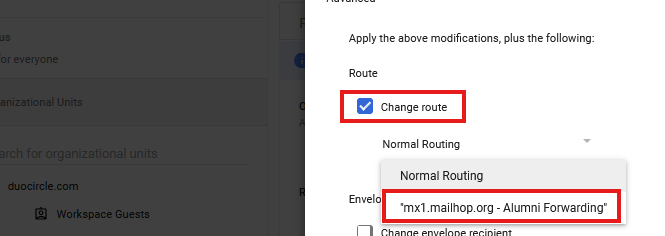
 23. Check "Change route" and select the "mx1.mailhop.org - Alumni Forwarding" route from Part 1.
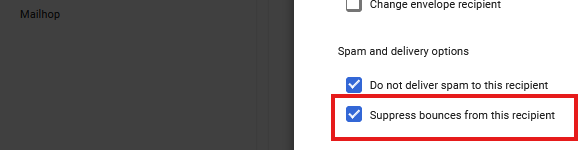
24. (Recommended) Check "Suppress bounces from this recipient".
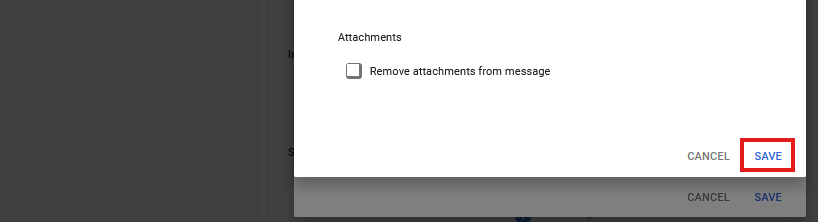
25. Click "SAVE" on the recipient.
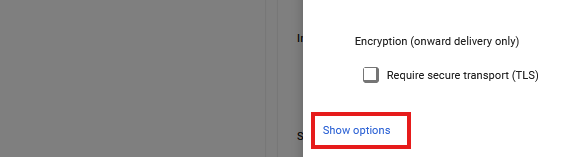
 26. Scroll down and click the 'Show Options' hotspot.
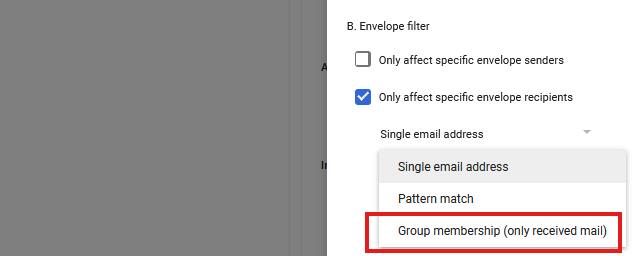
27. Check "Only affect specific envelope recipients".

28. In the recipient type drop-down, select "Group membership".
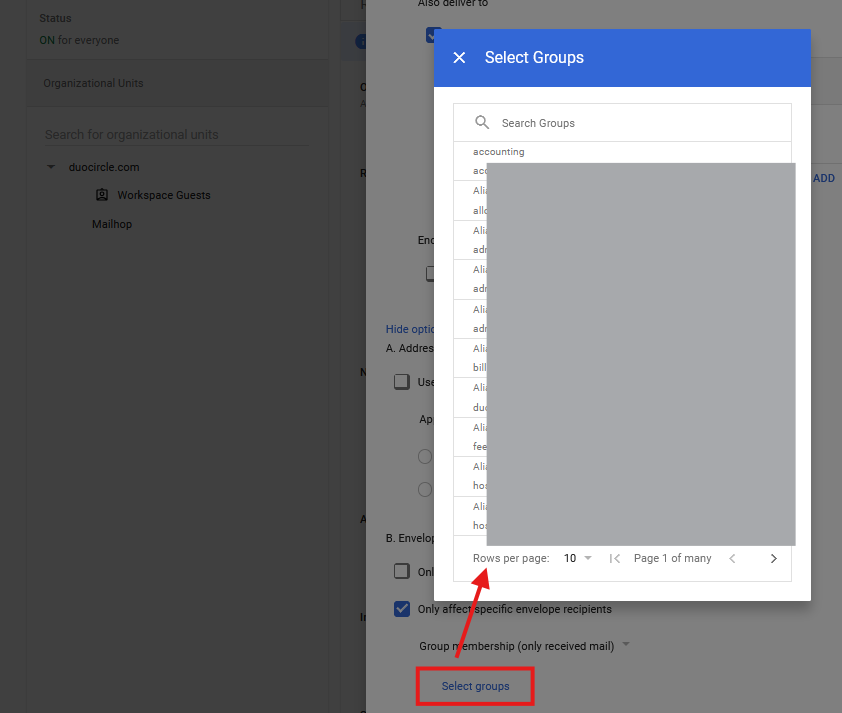
29. Click the 'Select groups' hotspot then select the group whose members should be split-delivered (for example an alumni@yourdomain.edu group). You can add more than one group.
30. Click "SAVE" to save the rule.
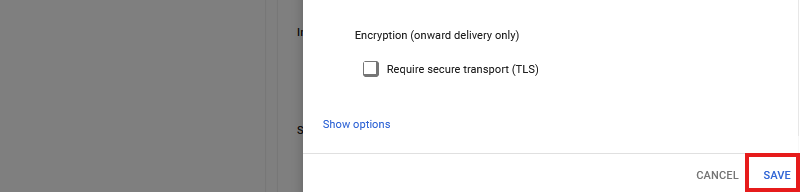
This completes the split (dual) delivery setup for the selected group. Mail to group members is delivered to their mailbox and copied to Alumni Forwarding; mail to non-members is delivered only to their mailbox.
Note: The Group membership filter affects both direct and child (nested) group members. Membership is managed from the Groups tab — adding or removing a user from the group adds or removes them from split delivery, with no change to the rule.
Part 3 — Partial group membership (a subset of a group)
Google applies the Group membership filter to the entire selected group (direct and child members); there is no option to select part of a group. To scope to a subset, use one of the following.
Method A — Create a dedicated sub-group (recommended)
31. Navigate to https://admin.google.com/u/1/ac/groups (the Groups tab).
32. Click "Create group".
33. Name it to reflect its purpose, e.g. "Alumni Forwarding - Split Delivery".
34. Add only the specific users who should receive split delivery.
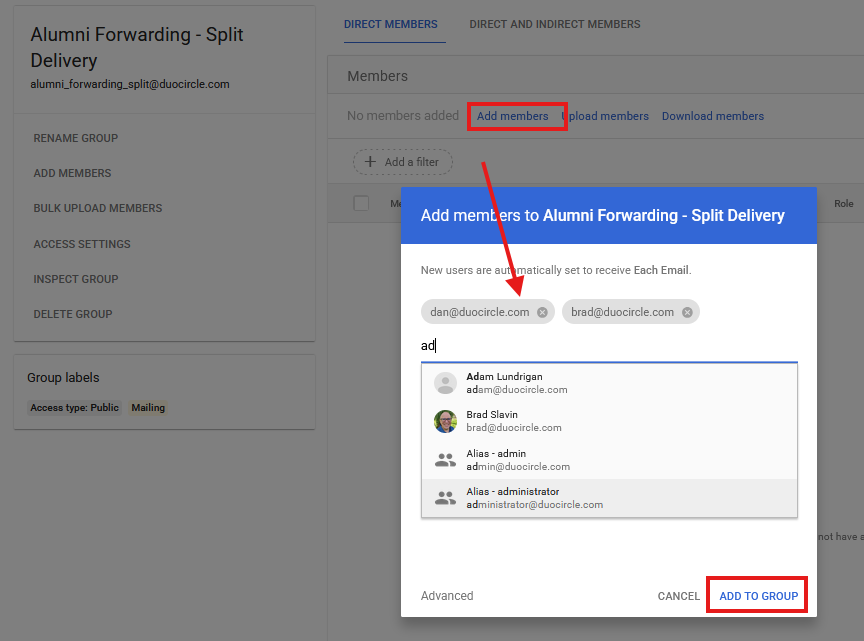
35. Click "ADD TO GROUP".
36. Return to the routing rule from Part 2 (or create a new rule following steps 13-25).
37. In Options, under "Only affect specific envelope recipients," select "Group membership" and choose the dedicated sub-group instead of the full group.
38. Click "SAVE".
Only the sub-group's members are split-delivered. You control the subset by managing that one group.
Method B — Pattern match or single recipients (small or ad-hoc subsets)
39. In the new Rule document Options, under "Only affect specific envelope recipients," select "Single recipient" for one address, or "Pattern match" for a regular expression.
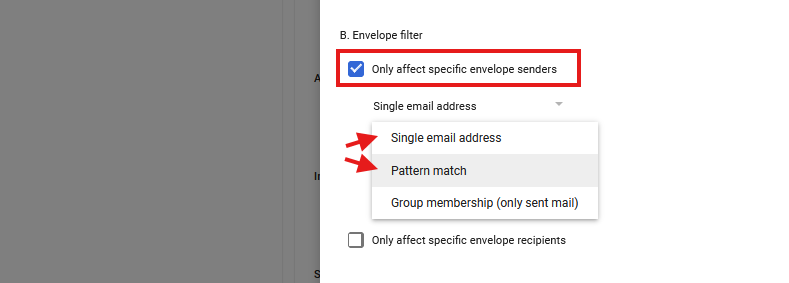
40. Enter the address(es) or pattern identifying the subset.
41. Click "SAVE".
Use Method B for a handful of addresses or a pattern; use Method A for a defined, lasting population someone will maintain over time.
Testing
Send a test message from an external address to (1) a user in the group/subset — confirm it arrives in both the mailbox and Alumni Forwarding; and (2) a user not in the group — confirm it arrives only in the mailbox.