
If emails to your users need to be delivered to their existing Google Workspace mailbox and, at the same time, a copy needs to be delivered to Alumni Forwarding for every user, set up a dual delivery routing rule. Every message is delivered normally to the mailbox in Google Workspace, and an additional copy is routed to Alumni Forwarding.
How this differs from "Route Unknown G Suite Users"
The Route Unknown G Suite Users article routes mail to Alumni Forwarding only when the mailbox does not exist. Use this article when you want all users delivered to both places at once — the existing mailbox and Alumni Forwarding.
Important — SPF and Spam Filtering settings: Because this configuration routes mail through Google Workspace before it reaches Alumni Forwarding, you must adjust your Alumni Forwarding spam filtering settings. See SPF, DKIM, and Spam Filtering Settings for Alumni Forwarding — Direct vs. Indirect Mail Routing before going live.
Below is a diagram showing the workflow.
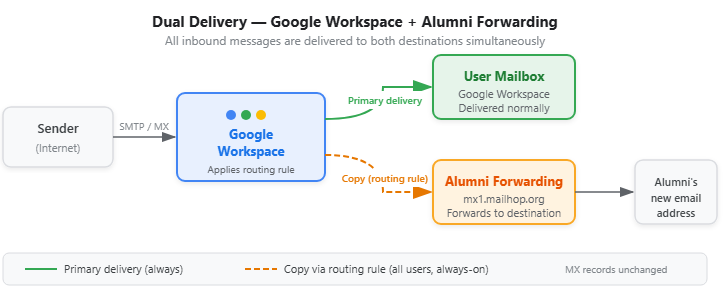
Part 1 — Add the Alumni Forwarding mail route (host)
If you have already added the mx1.mailhop.org host for another route, reuse it and skip to Part 2.
1. Navigate to https://admin.google.com/ and login.
2. Navigate to https://admin.google.com/u/1/ac/apps/gmail/hosts
3. Click "ADD ROUTE".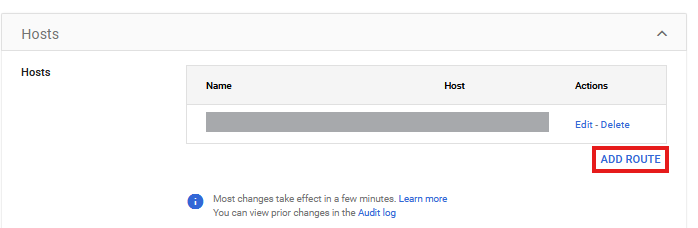
4. Click this field.
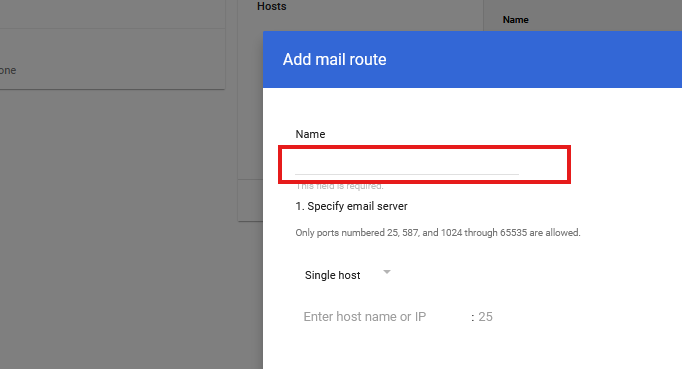
5. Type "mx1.mailhop.org - Alumni Forwarding".
6. Click the first field in the section 1. Specify email server.
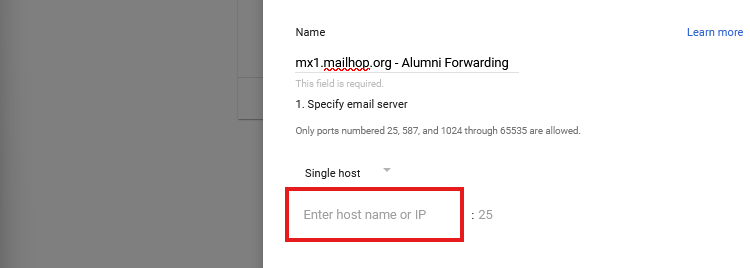
7. Type "mx1.mailhop.org".
8. Click the second field in the section 1. Specify email server.
9. Type "25".
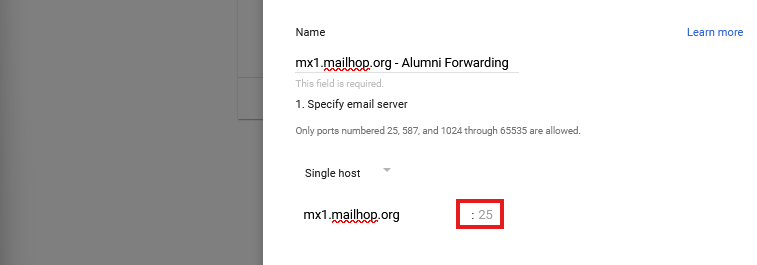
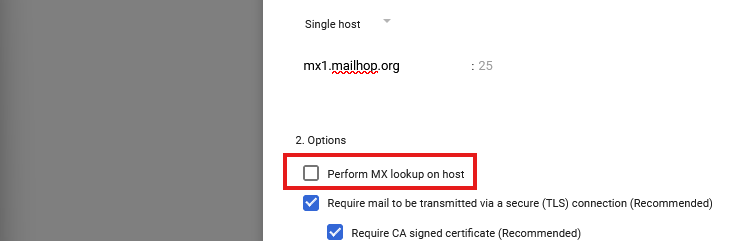
10. Click 'Perform MX lookup on host' in the 2. Options section (Single host).
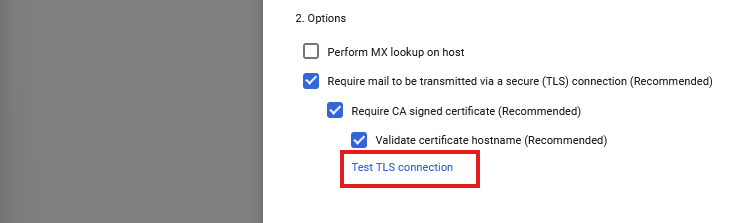
11. Click "Test TLS connection" in the 2. Options section.
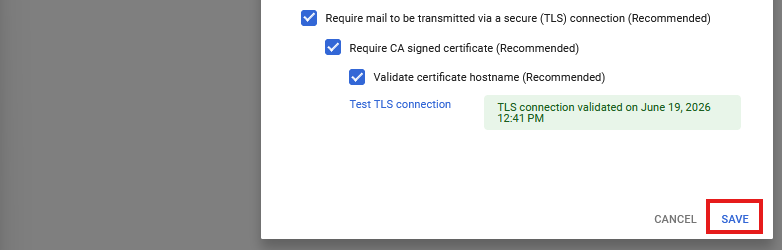
12. Click "SAVE".
Part 2 — Create the dual delivery routing rule
13. Navigate to https://admin.google.com/u/1/ac/apps/gmail/routing
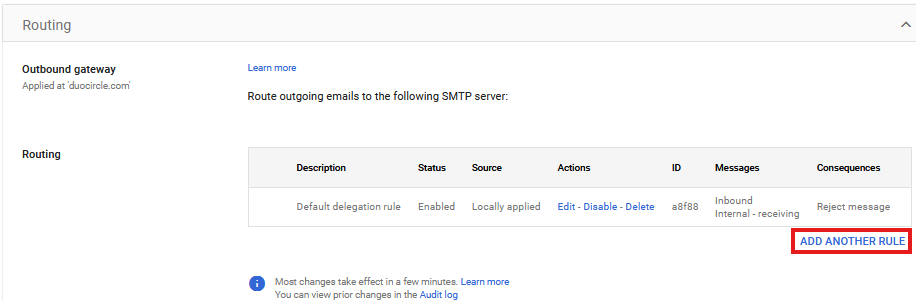
14. Click "ADD ANOTHER RULE" in the Routing section
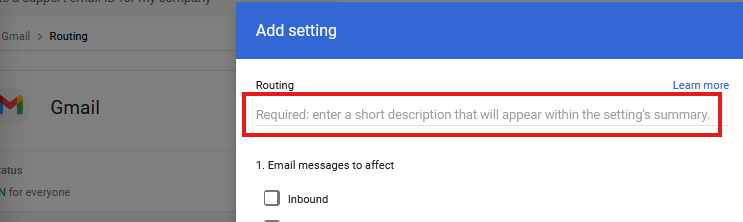
15. Click this field under the label Routing.
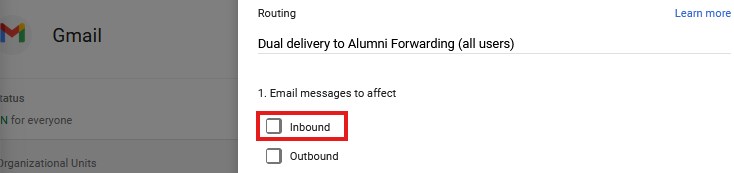
16. Type "Dual delivery to Alumni Forwarding (all users)".
17. Click 'Inbound' in the 1. Email messages to affect section.
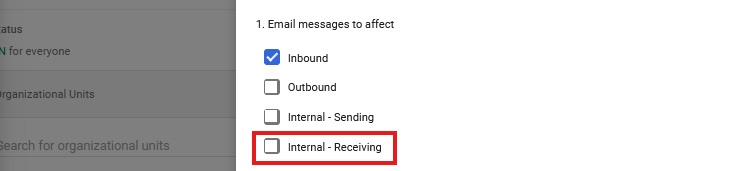
18. Click 'Internal - Receiving' in the 1. Email messages to affect section.
19. Under "For the above types of messages, do the following," select "Modify message".
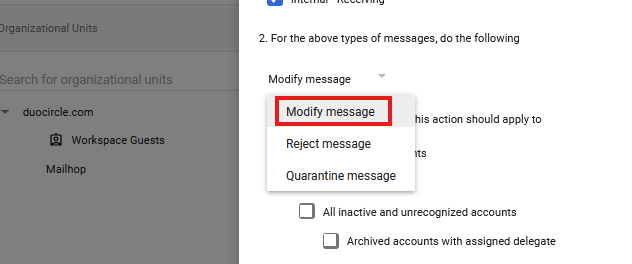
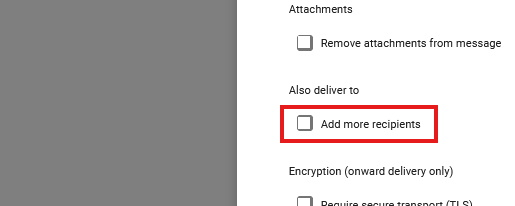
20. Scroll to "Also deliver to" and check "Add more recipients".
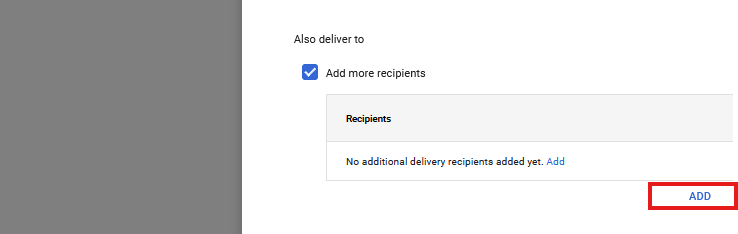
21. Click "ADD".
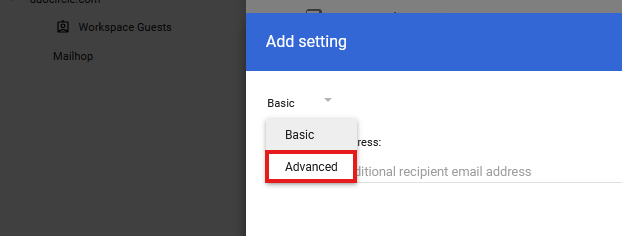
22. Click the down arrow on the recipient and select "Advanced".
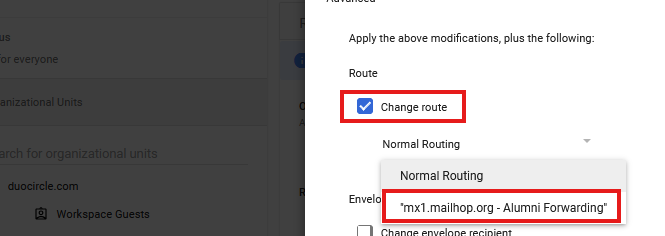
23. Check "Change route" and select the "mx1.mailhop.org - Alumni Forwarding" route from Part 1.
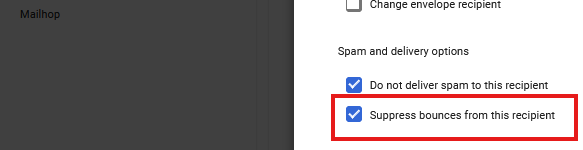
24. (Recommended) Check "Suppress bounces from this recipient".
25. Click "SAVE" on the recipient.
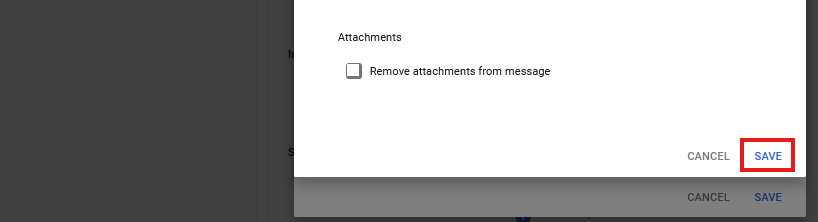
26. Click "SAVE" to save the rule.
This completes the split (dual) delivery setup for your domain.
Going forward, every message to any user is delivered to the existing Google Workspace mailbox as normal and an identical copy is routed to Alumni Forwarding, where it is forwarded on to the destination address. Because Google Workspace remains the primary mail server, your MX records do not change.
Note on volume: Because this rule applies to all users, every inbound message generates a second copy to Alumni Forwarding. Confirm the institution wants full duplication rather than a subset. Routing changes are usually active within minutes (occasionally up to 24 hours).
Applying the rule to a subset of users
If only certain users (for example alumni accounts) should be dual-delivered while everyone else stays Google-only, scope the rule with one of the methods below.
Option A — Organizational Unit (recommended for a defined group)
Best for a stable population such as "Alumni." Create or identify an OU, place the relevant users in it, and select that OU at the top of the routing rule instead of the top-level organization. Move users in or out of the OU to enable or disable dual delivery.
Option B — Configuration group (subset that spans OUs)
Create a Google Group, designate it as a configuration group, add the relevant users, and select that configuration group as the rule scope. Group membership then controls who is dual-delivered.
Option C — Envelope-recipient matching (small or ad-hoc lists)
In the Options section choose "Affect specific envelope recipients," then match by Single recipient, Pattern match (regular expression), or a defined list of addresses.
Tip: For a school wanting only alumni copied to Alumni Forwarding while staff and students stay Google-only, Option A is almost always the cleanest fit. A dedicated companion article, "Route a Group to Alumni Forwarding (Split Delivery by Group Membership)," covers the group-based approach in full.
Testing
Send a test message from an external address to one of the institution's user addresses and confirm it arrives in both the Google Workspace mailbox and the Alumni Forwarding destination.